
What’s the Difference Between Cookies, Cache? A Complete Guide for Better Browser Privacy
You’ve probably seen that “Accept Cookies” pop-up a hundred times. You’ve also heard people say “just clear your cache” when something stops working on a website. But do you actually know what these things are, where they live on your device, and what happens when you delete them? Most people don’t, and that’s completely fine because these terms are thrown around without much explanation.
This guide breaks it all down in plain language. By the end, you’ll understand the cookie vs cache in browser debate clearly enough to make smarter choices about your privacy and browsing performance.
What Is Cache?
When you visit a website, your browser downloads a bunch of files to display it properly: images, scripts, stylesheets, logos. Cache is where your browser stores these files locally on your device so the next time you visit that same site, it doesn’t have to download everything from scratch.
Think of it like this: you visit a news website every morning. The first time, your browser downloads their logo, fonts, layout files, and everything else. The second time, your browser says “I already have most of this, let me just grab what’s new.” That’s cache doing its job. It makes pages load faster and reduces data usage.
Cache is purely about performance. It doesn’t know who you are. It just stores files so things run smoother.
What happens if your cache is full?
Your browser may slow down, pages might not load correctly, or you could see outdated versions of websites. Clearing it usually fixes these issues quickly.
What Are Cookies? (And Their Types)
Cookies are small text files that websites store on your device to remember things about you. Unlike cache, cookies are personal. They know your preferences, your login status, what’s in your cart, and sometimes a lot more.
There are a few types worth knowing:
Session cookies are temporary. They exist only while your browser is open and disappear the moment you close it. These are what keep you logged in as you click through a site.
Persistent cookies stick around for a set amount of time, even after you close the browser. These are why you don’t have to log in to your favorite sites every single time.
First-party cookies are set by the website you’re actually visiting. They’re generally safe and helpful.
Third-party cookies are set by external companies, usually advertisers. These are the ones that track you across multiple websites and show you ads for that bag you looked at two days ago. These are the cookies you should be most cautious about accepting.
How Do Cache and Cookies Actually Work?
When you land on a website, your browser sends a request to that site’s server. The server responds with content. Cache saves the static files from that response. Cookies, on the other hand, are like a handshake between you and the site — the server sends a small piece of data, your browser stores it, and every time you revisit, your browser sends that cookie back to the server so the site recognizes you.
That’s why logging into a site once keeps you logged in. The cookie is saying “yes, this person already verified who they are.”
Cookie vs Cache in Browser: Key Differences
Here’s a clear side-by-side look at the cookie vs cache in browser comparison:
| Feature | Cache | Cookies |
|---|---|---|
| What it stores | Static files (images, HTML, CSS, JS) | User data (login, preferences, tracking) |
| Purpose | Speed up loading | Remember user identity and settings |
| Contains personal info? | No | Yes |
| Expires | Manually cleared or browser decides | Set by website (session or date-based) |
| Who controls it | Browser | Website + Browser |
| Privacy risk | Low | Medium to High |
| Size | Can be several MB or more | Very small (a few KB) |
Understanding this table is basically the heart of the cookie vs cache in browser debate. They serve completely different purposes, even though people often mention them in the same breath.
Pros and Cons of Cookies and Cache
Cookies: The Good and the Bad
On the positive side, cookies make your browsing experience seamless. You stay logged in, your cart is saved, your language preference is remembered. Without cookies, the web would feel frustratingly forgetful.
The downside is privacy. Third-party cookies in particular are used to build detailed profiles of your behavior across the internet. They can track which articles you read, what products you browse, and even roughly where you are. That data is often sold or shared with advertisers.
Cache: The Good and the Bad
Cache is mostly your friend. Faster load times, less data used, smoother experience overall, there’s very little to complain about. The main issue is that an outdated cache can sometimes show you old versions of a website or cause display bugs. On a shared device, someone could also theoretically look at your cached files to see which sites you’ve visited, but that’s an edge case.
What Does It Mean to “Clear Cache and Cookies”?
Clearing cache means deleting all those locally saved files your browser has collected. The next time you visit any site, it has to download everything fresh, which might make your first visit a bit slower. But you’ll see the most current version of the site and any display bugs often disappear.
Clearing cookies means deleting all that stored personal data. You’ll be logged out of most websites, your preferences will reset, and your shopping cart will be empty. The upside is that tracking cookies get wiped too, which is a genuine privacy win.
Many people do both together as a kind of digital reset — and it’s actually a good habit to do every few weeks.
Should You Clear Cache or Cookies? (Or Both?)
If a website is acting strangely or loading slowly, clearing the cache is usually enough. If you’re concerned about privacy, being tracked, or you’re on a shared device, clearing cookies is the smarter move. Doing both is the most thorough option.
Here’s a key question people often ask:
Will I lose my passwords if I clear my cache?
No. Passwords are saved separately in your browser’s password manager, not in the cache. But clearing cookies can log you out of sites, so you may need to sign back in with your saved passwords.
Are passwords saved in cache or cookies?
Neither, actually. Passwords live in your browser’s dedicated password storage. If you’re wondering what the safest place to keep passwords is, a dedicated password manager like Bitwarden or 1Password is far more secure than relying on your browser alone.
How to Clear Cookies and Cache
On Chrome: Go to Settings, then Privacy and Security, then Clear Browsing Data. Check the boxes for cached images and cookies, choose your time range, and hit Clear Data.
On Firefox: Go to Settings, then Privacy and Security, scroll down to Cookies and Site Data, and click Clear Data.
On Safari (iPhone/iPad): Go to Settings, scroll to Safari, and tap Clear History and Website Data.
On Edge: Go to Settings, then Privacy, Search and Services, and click Choose What to Clear under Clear Browsing Data.
It takes less than a minute and can genuinely improve performance and privacy in one shot. If you’re already thinking about digital security in general, it pairs well with habits like those in this guide on how to keep your phone secure.
What Are the Disadvantages of Clearing Cache?
The main drawback is that websites load slower right after you clear the cache because your browser has to re-download everything. You might also lose some convenience features that rely on cached data. That said, the slowdown is usually temporary, and your browser rebuilds its cache quickly as you browse. For most people, the performance hit lasts maybe a day before things feel normal again.
How to See Your Cache and Cookies
In Chrome, type chrome://settings/content/all in the address bar to see all stored cookies and site data. For cache, developer tools (press F12, go to Application tab) give you a detailed breakdown. In Firefox, the Storage Inspector in developer tools shows you the same.
This is also useful if your browser feels sluggish. Sometimes a bloated cache is the culprit, and clearing it can give your browsing experience a noticeable speed boost — similar to the kinds of improvements covered in this guide on how to speed up your laptop without buying anything.
Which Cookies Should You NOT Accept?
As a general rule, you should decline third-party or tracking cookies whenever you have the option. These serve advertisers more than they serve you. Most cookie consent banners have an option to “accept necessary only” or “manage preferences” where you can turn off tracking and analytics cookies while still keeping the functional ones that make the site work properly.
A Note on Browser History
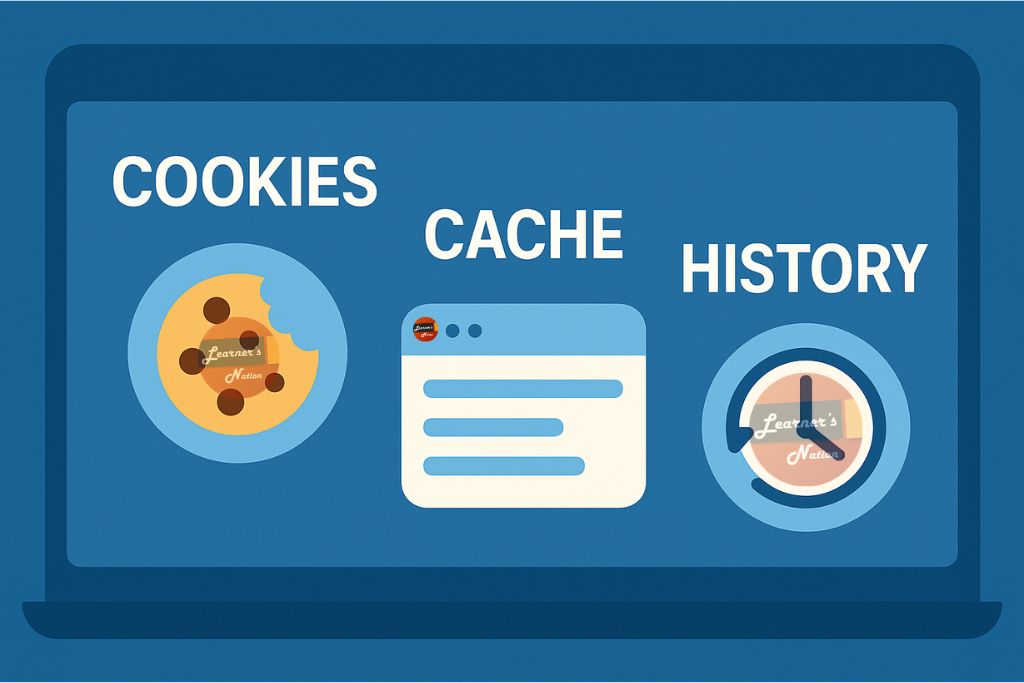
Browser history is separate from both cache and cookies. It’s simply a log of URLs you’ve visited. It doesn’t speed up loading or remember your login — it just lets you go back and find something you visited before. Clearing history doesn’t affect your cache or cookies, and vice versa. They’re three separate things that all happen to live in your browser.
Conclusion
The cookie vs cache in browser conversation really comes down to this: cache is about speed, cookies are about identity. Both serve legitimate purposes, but cookies carry a much higher privacy risk, especially the third-party variety. Making a habit of clearing both regularly, being selective about which cookies you accept, and understanding what’s actually being stored on your device puts you in a much stronger position when it comes to online privacy.
You don’t have to be a tech expert to take control of this. Just knowing the difference between cookie vs cache in browser is already more than most people know, and now you can act on it.
Frequently Asked Questions
What is the difference between browser cache and cookies?
Cache stores website files like images and scripts to speed up loading. Cookies store personal data like login status and preferences to recognize you.
Should I clear cookies or cache?
Clear cache to fix loading issues. Clear cookies for better privacy. Both together gives you a fresh, clean start.
What will happen if I delete cache and cookies?
You’ll be logged out of websites, your preferences will reset, and pages will load a little slower at first. No permanent data is lost.
Will I lose my passwords if I clear my cache?
No. Passwords are stored separately in your browser’s password manager, not in cache.
What is the safest place to keep passwords?
A dedicated password manager like Bitwarden or 1Password is the safest option, more secure than browser-saved passwords.
What happens if my cache is full?
Pages may load slowly, appear outdated, or display errors. Clearing the cache resolves this.
Are passwords saved in cache or cookies?
Neither. Passwords are stored in your browser’s dedicated password storage or a password manager.
Is it a good idea to delete your cookies?
Yes, periodically. It removes tracking data and improves privacy, though you’ll need to log back into your accounts.
What are the most hacked passwords?
Common ones like “123456,” “password,” “qwerty,” and short personal details like birthdays are frequently compromised. Always use long, random passwords and enable two-factor authentication.
Which cookies should I not accept?
Avoid accepting third-party, advertising, and tracking cookies. Only accept “necessary” or “functional” cookies when possible.